Signal Warrants
This documentation goes over the Signal Warrants Tab.
1. Access Signal Warrants Tab
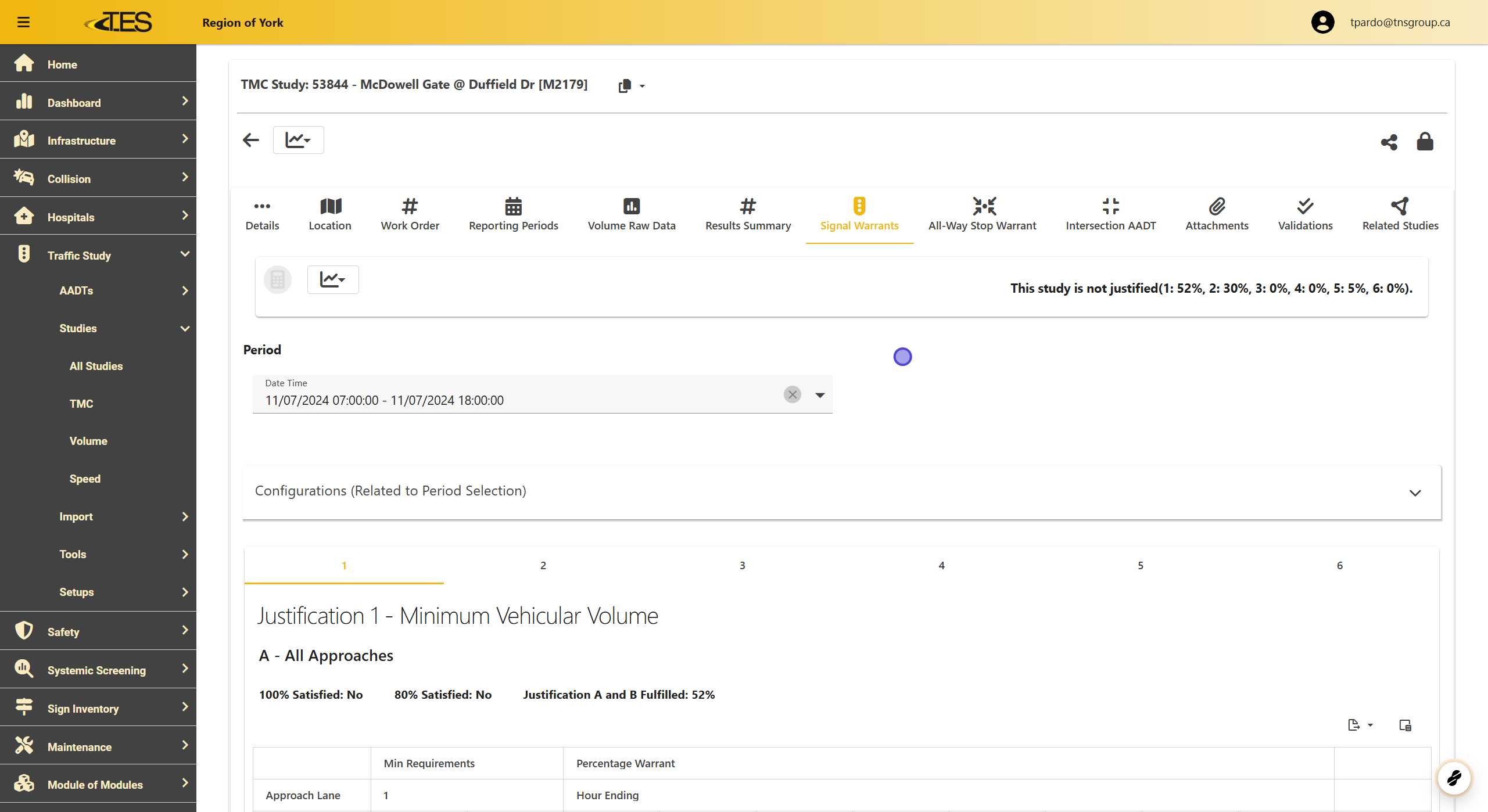
The Signal Warrants tab evaluates whether a location in the study meets the criteria for installing a traffic signal. These criteria are based on the justifications outlined in Book 12 of the Ontario Traffic Manual.
-
At the top of the Signal Warrants tab, you can view:
-
Whether the study is justified.
-
The percentage of satisfaction for each justification.
-
2. Select Configurations
The Configurations section allows you to adjust the settings related to the Signal Warrants tab.
-
To make changes:
-
Enter editing mode .
-
Adjust the configurations as needed.
-
To update the justification:
-
Click the calculator icon at the top of the Signal Warrants tab.
-
Click Save to apply changes.
-
-

3. Section Type
The Section Type field shows the type of intersection for the study location. This field is non-editable within the Signal Warrants tab.

4. Approach Lanes
This configuration determines whether one or more lanes will be analyzed for signal warrant justification on:
-
Major roads
-
Minor roads
This is for if you want 1 or 2+ lanes to be used for signal warrant analysis for either major or minor roads.

5. Channelized Right Turn Approaches
Specify if the intersection has channelized right turns . Options include:
-
Both Directions
-
East
-
North
-
South
-
West
-
Unknown

6. Flow Condition
The Flow Condition setting determines the traffic flow type:
-
Free: No restrictions.
-
Restricted: Traffic flow is limited.
This setting impacts the minimum requirements for Justifications 1 and 2 .

7. Hours Needed for Justification
This field defines the number of hours considered for Justifications 1 and 2 .

8. Delayed Pedestrian Volume
Adjust the Delayed Pedestrian Volume for Justification 6 in this field.

9. Years
The Years field specifies the range of years included in Justification 5 . You can adjust the selected years based on your study's requirements.

10. Justification One - Minimum Vehicular Volume
-
Purpose: Evaluates the top 8 hours of the study with the highest traffic volume.
-
Structure:
-
Divided into two parts:
-
All Approaches (Volume from all approaches)
-
Minor Road (Volume from both approaches on the minor road)
-
-
-
Criteria:
-
Minimum volume required for 80% and 100% compliance.
-
Displays compliance percentages for each hour.
-
-
Outcome:
-
If 100% compliance is not met but 80% compliance is achieved, this justification can still contribute to Justification 3 .
-
Justification one is satisfied if it is 100% satisfied.
-

11. Justification Two - Delay to Cross Traffic
-
Purpose: Analyzes delays experienced by cross traffic.
-
Structure:
-
Two parts:
-
Major Road (Volume from both approaches on the major road)
-
Traffic Crossing the Major Road
-
-
-
Criteria: Similar to Justification One , with adjusted minimum requirements.
-
Outcome: Structured identically to Justification One .

12. Justification Three - Volume/Delay Combination
-
Purpose: Combines Justification One and Justification Two .
-
Criteria: Satisfied if both Justifications One and Two achieve at least 80% compliance.

13. Justification Four - Minimum Four-Hour Vehicle Volume
-
Purpose: Evaluates the 4 hours with the highest vehicle volume.
-
Criteria: Checks if the volume exceeds the required minimum value.

14. Justification Five - Collision Experience
-
Purpose: Assesses the number of reportable crashes within 48 consecutive months.
-
Criteria:
-
Compares crash data against the warrant value.
-
Ensures less restrictive measures have been attempted but failed.
-
-
Outcome: Satisfied if both conditions are met.

15. Justification Six - Pedestrian Delay
-
Purpose: Analyzes pedestrian delay and volume using two graphs:
-
Pedestrian Delay Graph
-
Pedestrian Volume Graph
-
-
Criteria: Net 8-hour pedestrian volume must fall within the dark green segment of both graphs.
-
Additional Feature: Export graphs by selecting the hamburger menu and choosing an image type.

16. Signal Warrant Details Report
-
Generate a detailed report summarizing the justifications.
-
Steps to Create:
-
Navigate to the Signal Warrants tab.
-
Click the Signal Warrant Details button at the top.
-
