Results Summary: Details
This documentation goes over the details tab in the Results Summary tab for a study.
1. Access Details Tab
-
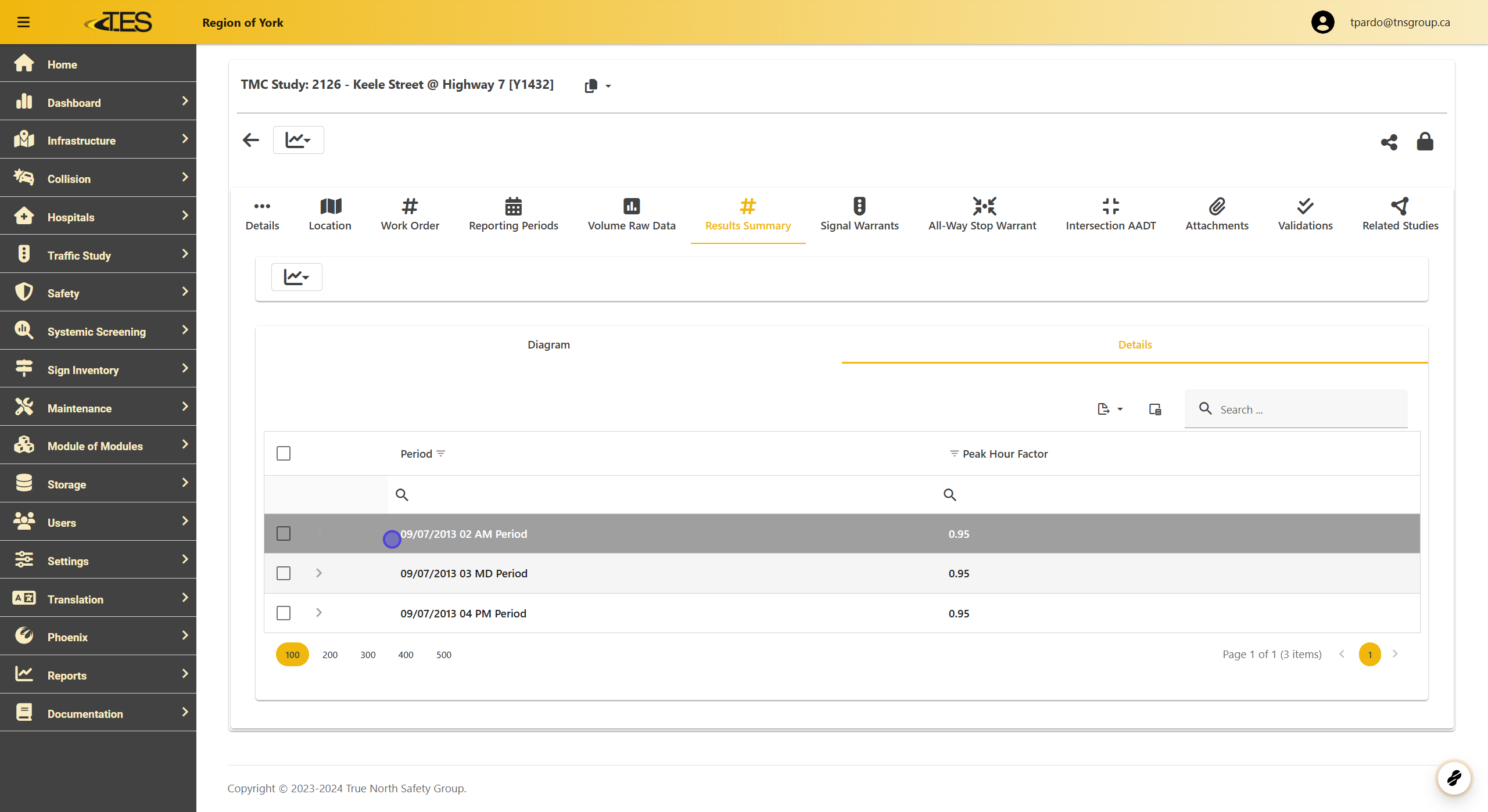
Navigate to the Details tab under Results Summary .
-
In this tab, you will see a data grid displaying all the periods within the study.
2. Select a Period
-
Select a specific period from the list by clicking on it.
-
The selected period will expand to display the details.

3. View Data
The expanded period will show detailed data, including:
-
Start Time and End Time of the period.
-
Total Vehicles , Total Trucks , and Total Pedestrians counted.
-
Peak Hour Factor for each time interval

4. Details Reports
You can generate five different reports using the data:
-
TMC Full AADT Diagram
-
TMC Full Diagram
-
TMC Peak Hour Diagram
-
TMC Peak Hour Diagram Truck Percent
-
TMC Peak Period Diagram

5. Before Creating a Report
Select the periods you want to include in your report:
- Check the boxes next to the desired periods in the Details grid.

6. TMC Full Diagram
This report displays the Volume Summary Diagram with counted volumes for the full study.

7. TMC Full AADT Diagram
Similar to the TMC Full Diagram , but the volumes are converted to AADT using the AADT factor.

8. TMC Peak Hour Diagram
This report shows the peak hour volumes for the selected periods.

9. TMC Peak Hour Diagram With Truck Percent
Similar to the TMC Peak Hour Diagram , but replaces cyclist percentages with truck percentages.

10. TMC Peak Period Diagram
Displays the peak period of the selected time intervals instead of the peak hours.
