View on the Map
This documentation shows how to display, highlight, and manage data on the map in TES.
1. Access Data Grid
Navigate to a Data Grid in TES where your data is displayed.
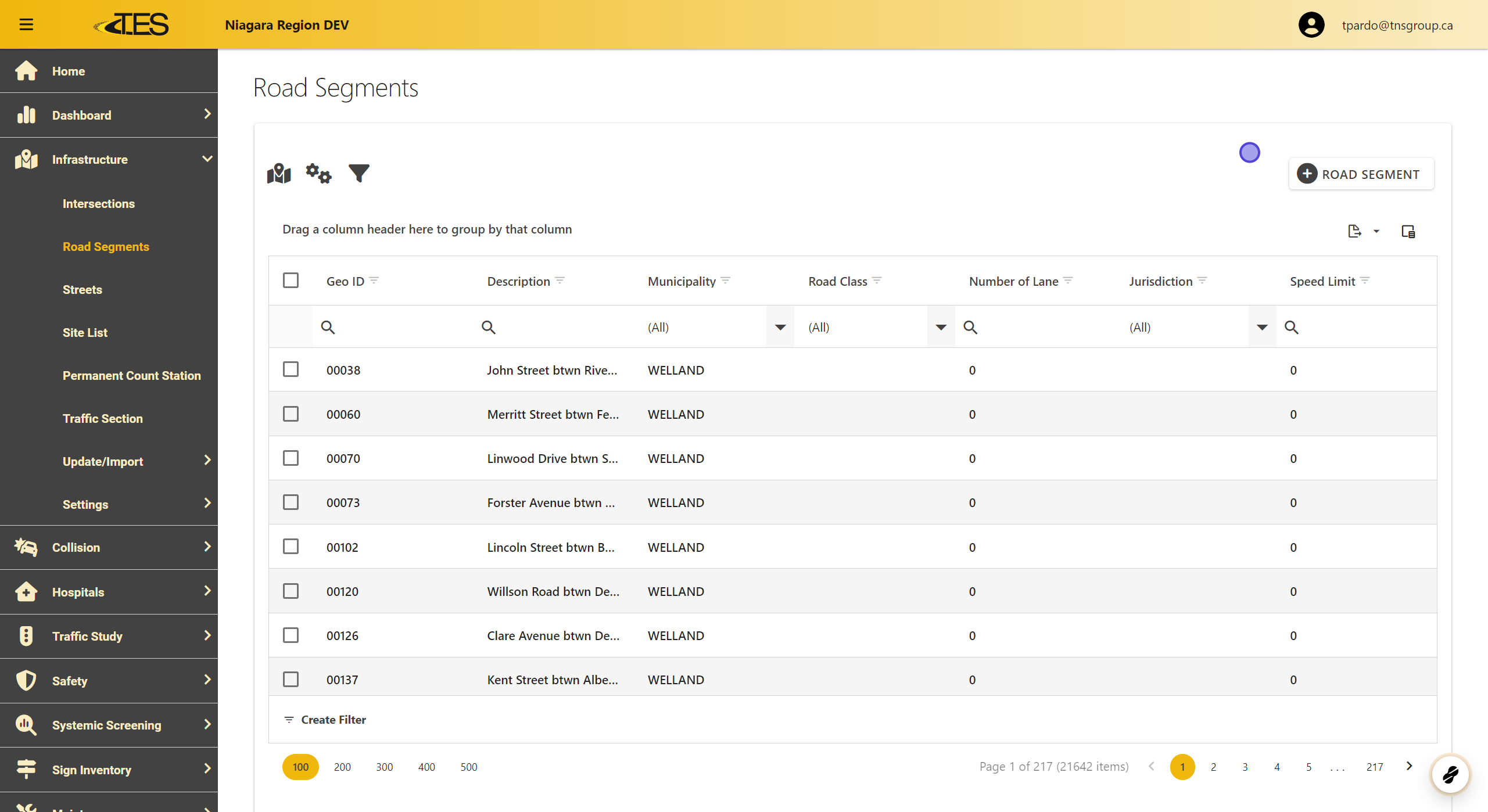
2. Select Data to Display
Click the checkboxes next to the data entries you want to display on the map.

3. Open Map
-
Click on the Map button to open the map interface.
-
The selected data will appear highlighted on the map.

4. Highlight Data on Map
-
The selected road segments or locations will appear as highlighted points on the map.
-
Highlights are displayed in light blue for easy identification.

5. Select Locations Directly on Map
Use the selection tool (a square icon under the zoom buttons) to select locations directly from the map.

6. Create an Area of Selection
Click and drag to create an area of selection, then double-click to finalize.

7. Display Settings
Click on "Show All Locations" to display all selected data on the grid.

8. Display Settings
To remove a selection, click on the encircled "X" in the map toolbar.

9. Manage Map Layers
Click the Layer button to manage visibility of layers on the map.

10. Manage Map Layers
-
Visible layers are indicated by an eye icon.
-
Hidden layers are marked by a crossed-out eye.

11. Export Map
-
Click the Print button to export the map.
-
Note: The printed map will include all layers you have visible, which might include highlighted data points.

12. Export Map
-
Choose between "Map Only" or a full Layout for printing.
-
Adjust settings such as the title, page setup, and file format before exporting.
