Filters
This documentation shows how to use filters to narrow down data displayed in the TES data grid.
1. Access Data Grid
- Navigate to a Data Grid in TES where your data is displayed.
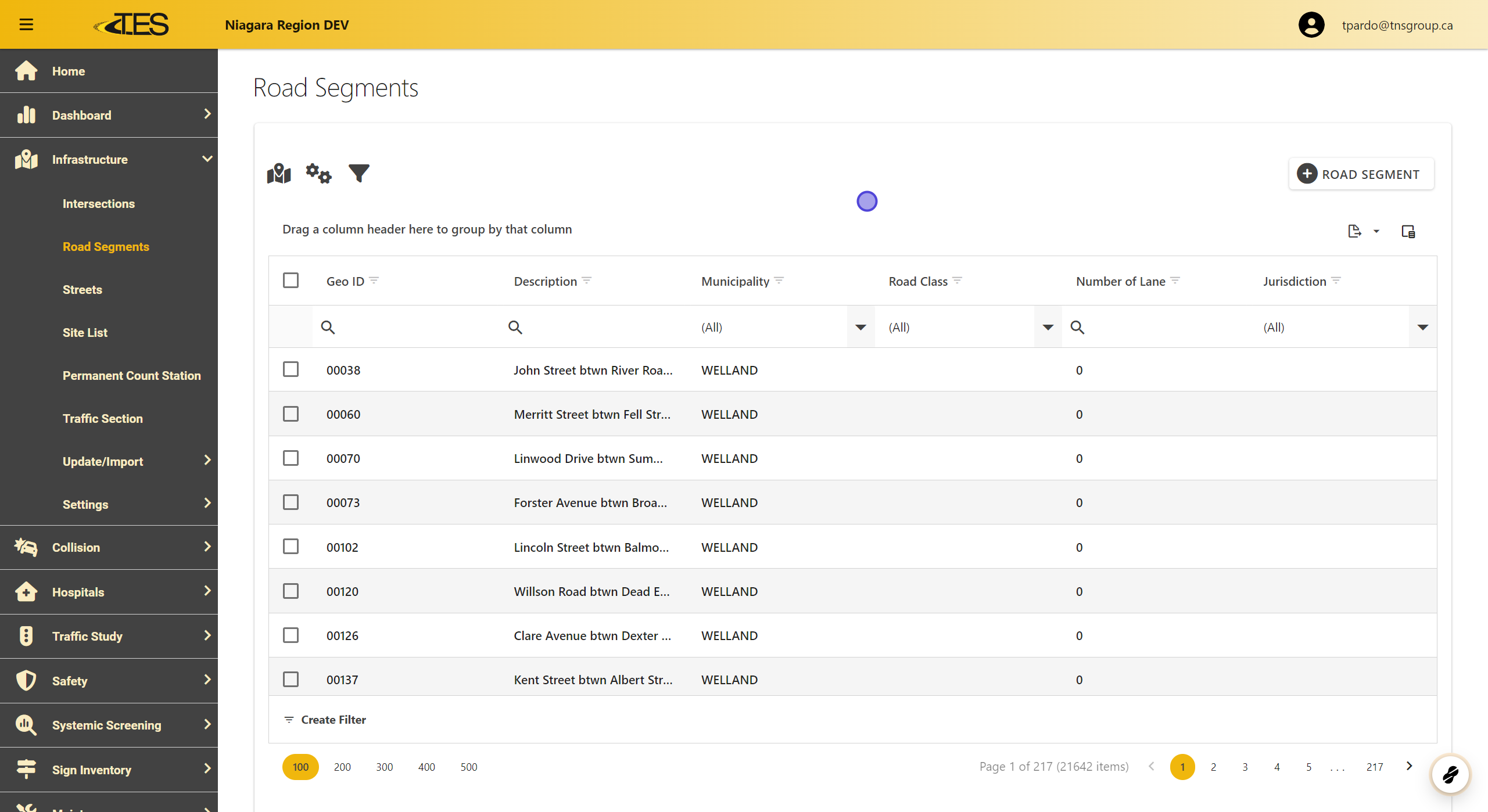
2. Apply a Simple Filter
-
Click on the cell below the column header of the column you want to filter by.
-
Select a filter option from the dropdown menu that appears.

3. Keyword Search Filtering
For columns that support keyword filtering:
-
Type a keyword into the search cell (indicated by a magnifying glass).
-
Results will filter automatically based on your input.

4. Modify Keyword Search Filter
-
Hover over the magnifying glass icon to choose a different filter type, such as:
-
Does not contain
-
Starts with
-
Ends with
-
Equals
-
Does not equal
-
-
Select Reset to return to the default keyword search.

5. Filter by Multiple Elements
-
Click the triangle icon in the column header to open the filter menu.
-
Select multiple elements you wish to filter by from the dropdown list.

6. Confirm Your Selection
-
Use the checkboxes in the filter menu to pick the desired elements.
-
Click OK to apply the filter.

7. Hide a Filter
-
Click the checkmark box at the bottom of the grid to hide the active filter.
-
The filter remains applied but is hidden until re-enabled.

8. Clear a Filter
- Click Clear at the bottom-right corner of the data grid to remove all filters.
