Grid View Manager
This documentation shows how to use grid view manager on a data grid.
1. Access Data Grid
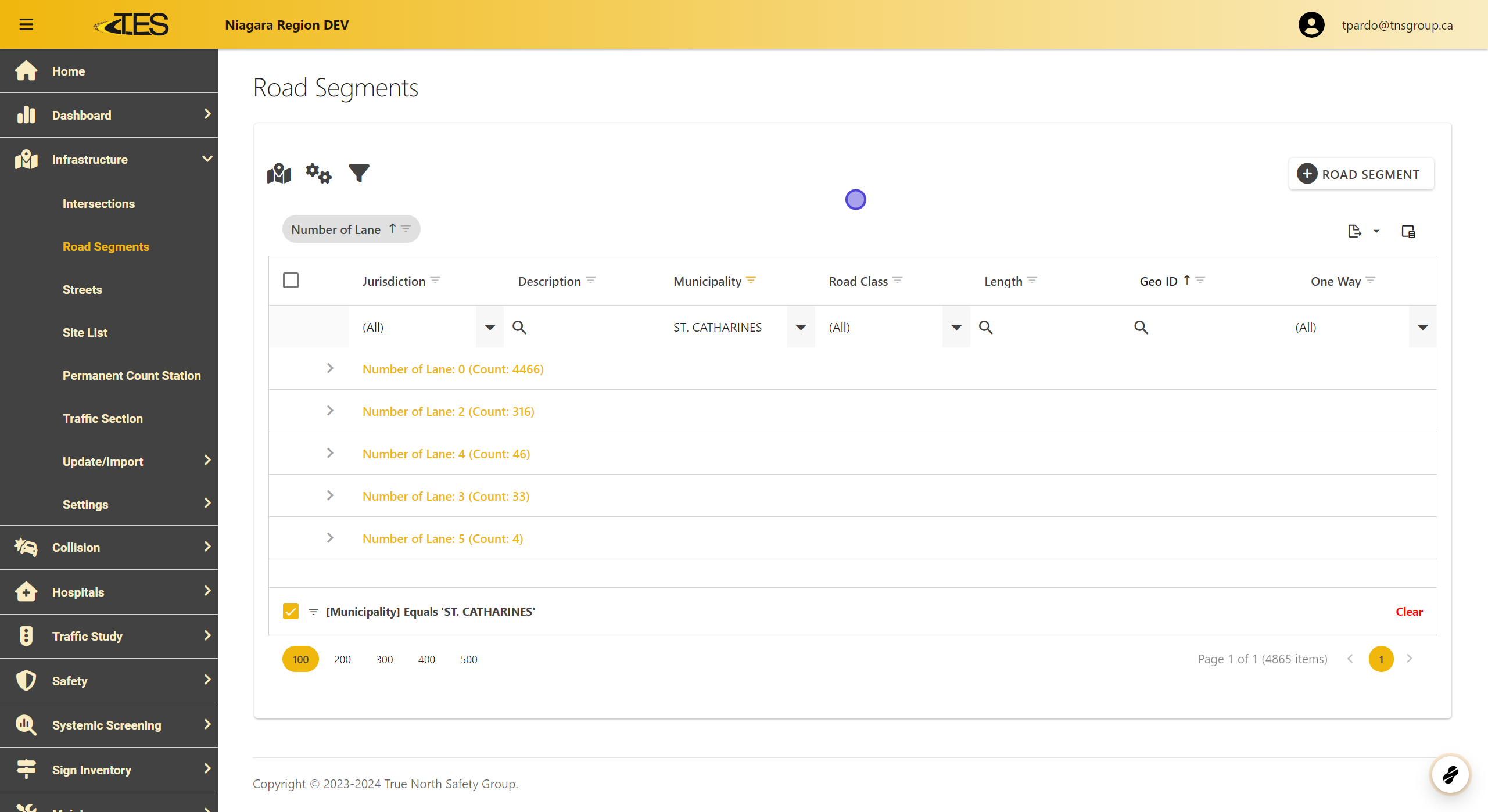
2. Select the Grid View Manager Button
- Grid View Manager allows you to save the current layout of your data grid as a preset as well as use already saved presets for your data grid.

3. Click on the Save Button

4. Saved Presets
- Name Your Filter and Add It to the Saved Presets.

5. Viewing Saved Presets
- You can see the name of the preset, the status (If is is being share to colleagues in your jurisdiction) as well as actions you can take on the preset.
- You can rename the preset, delete it, share it with colleagues or replace the layout the preset stores (Keeps the name of the preset but changes the actual saved layout).
- If you click on a preset in the data grid, It will change the layout of the data grid to the layout saved in the preset.

6. Sharing Presets
- To share your preset, click on the Share Button.

7. Sharing Presets
- You can select your desired user and/or roles by clicking on the Box to the left of the user or role, the same as selecting data in the data grid.
- Note:
- Sharing a preset with a role means that everyone with that role can have access to the preset.
- Once you have selected all of the users or roles you want to share with, you can select Share at the bottom right to share with those users/roles.

8. Toggle Horizontal Scrolling
- With horizontal scrolling enabled, the columns will become wider so that the width of the cells in a column match the length of the data so that no data is cut off.
- As a result, not all of the columns will be able to fit within the page.
- You can however, scroll horizontally to view columns that do not appear on the page.
- This can be useful if you have lots of columns and want to space them out and view their information clearly.

9. No Horizontal Scrolling Example
- All of the columns are condensed to fit onto the page.
- You can see within the highlighted boxes, data that was cut off to be able to fit all the columns into the page.

10. Horizontal Scrolling Example
- You can see when you enable horizontal scrolling, the columns become spaced out.
- To view the columns outside of the page, you can scroll with the horizontal scroll-bar at the bottom of the data grid to access these columns.

11. Select RESET TO DEFAULT
- Select RESET TO DEFAULT to Return to the Default Layout of the Data Grid.
