Advanced Filters
This documentation shows how to create and use advanced filters for your data grid.
1. Access Data Grid
- Navigate to the relevant data grid for your project.
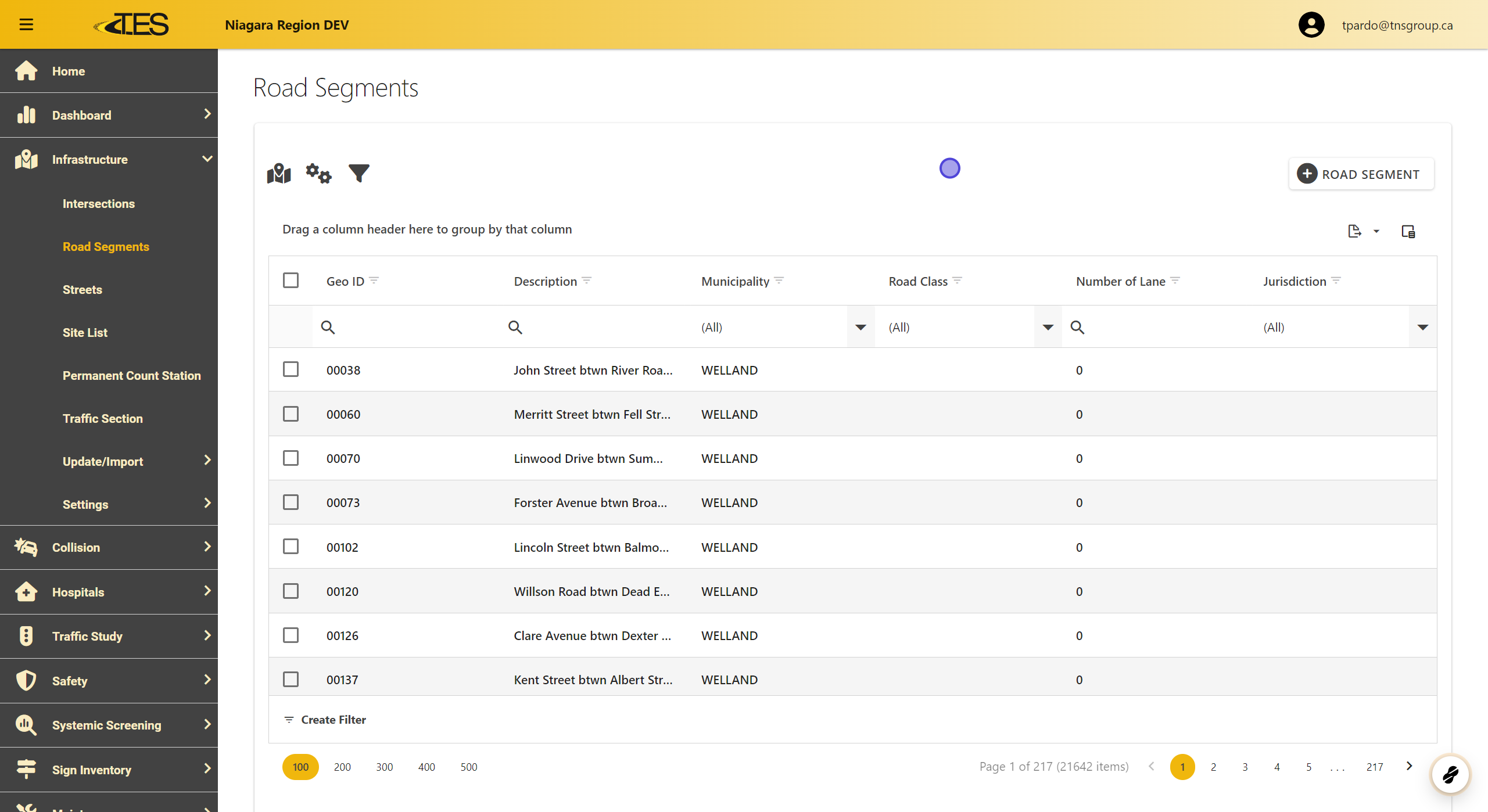
2. Click on "Create Filter"
At the bottom-left of the data grid, find and click the "Create Filter" button.

3. Add a Condition or Group
Click the plus (+) icon to add a condition or a group to your filter.

4. Edit Your Conditions
Each condition has three parts:
-
Column Selector (Yellow) : Choose the column you want to filter.
-
Condition Type (Green) : Specify how you want to filter (e.g., equals, contains, is blank).
-
Value (Grey) : Enter or select the value(s) for the filter.

5. Change the Main Operation
Use the red "And" button to set the main filter operation:
-
And : Includes data matching all conditions.
-
Or : Includes data matching at least one condition.
-
Not And : Excludes data matching all conditions.
-
Not Or : Excludes data matching any condition.

6. Add a Sub-Operator
Click "Add Group" to include a sub-operator within your filter.
- Sub-operators allow you to combine multiple conditions logically within the main operation.

7. Apply or Cancel a Filter
When you’re done configuring the filter:
-
Click "OK" to apply it.
-
Click "Cancel" to exit without saving changes.
