Introduction
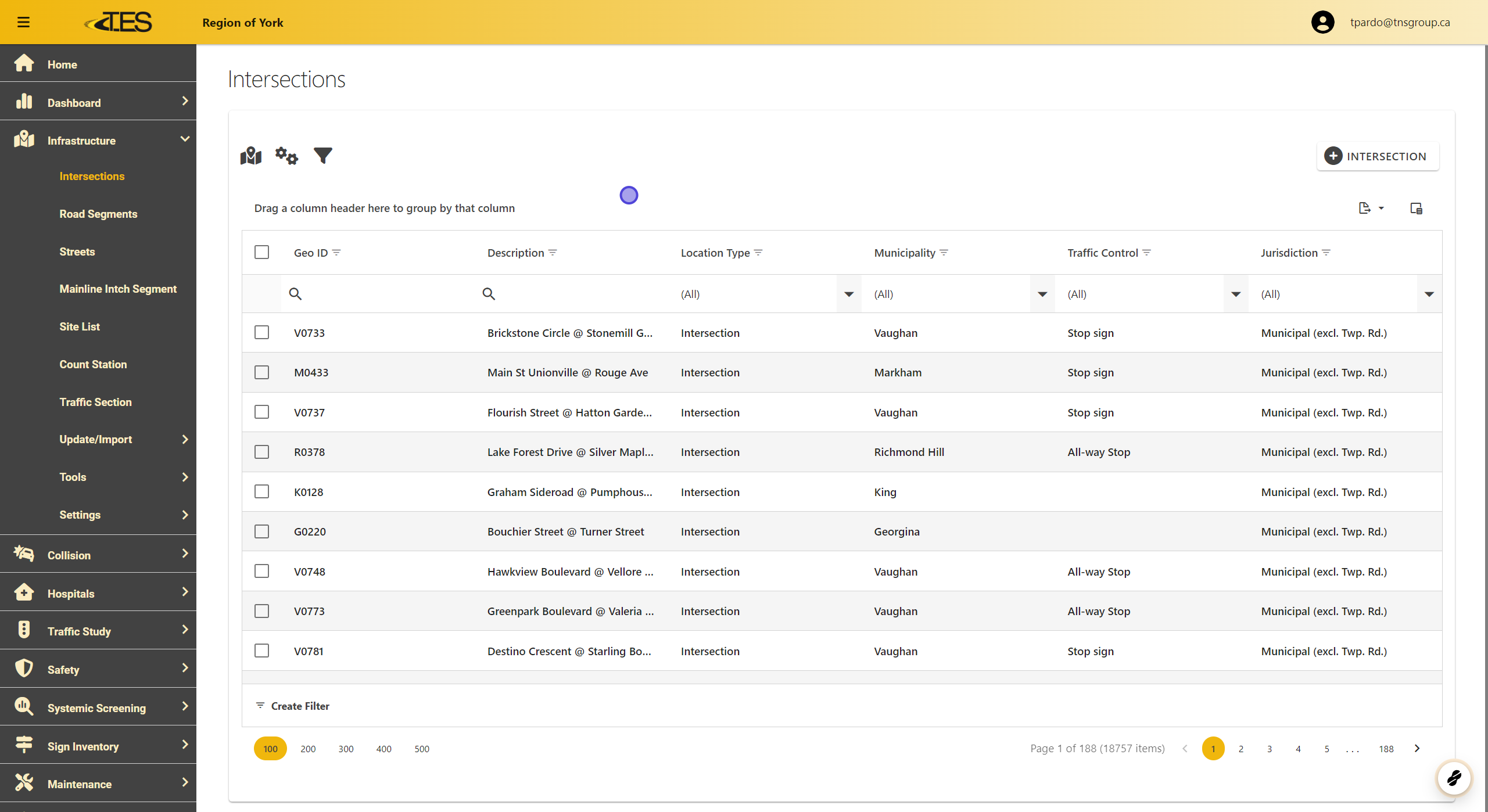
This documentation goes over the columns shown in the Intersection Grid View.
1. Access Intersections
To access the Intersections Grid View:
-
Go to the Infrastructure module in the navigation menu on the left-hand side.
-
Select Intersections from the list.
2. GEOID
The GEOID column displays the unique identifier for each intersection, linking it to its geographical representation on the GIS map.

3. Description
This column provides the name or description of the intersection, such as nearby streets or landmarks.

4. Location Type
This indicates the type of location, such as an intersection, roundabout, or other types of road infrastructure.

5. Municipality
This column shows the municipality where the intersection is located.

6. Traffic Control
Displays the type of traffic control at the intersection (e.g., stop signs, traffic lights, or all-way stops).

7. Jurisdiction
Identifies the governing jurisdiction responsible for the intersection, such as municipal or regional authorities.

8. The Column Chooser
The Column Chooser allows you to customize the grid view by adding or removing columns:
- Click the column chooser button in the top-right corner of the grid.

9. Select Columns You Want to Add.
Select or deselect columns based on your preferences. For example:
-
Intersection Type
-
Surface Type
-
Site Sub Type
