Site List
This documentation shows how to create, share, and use site lists.
1. Access Site List Module
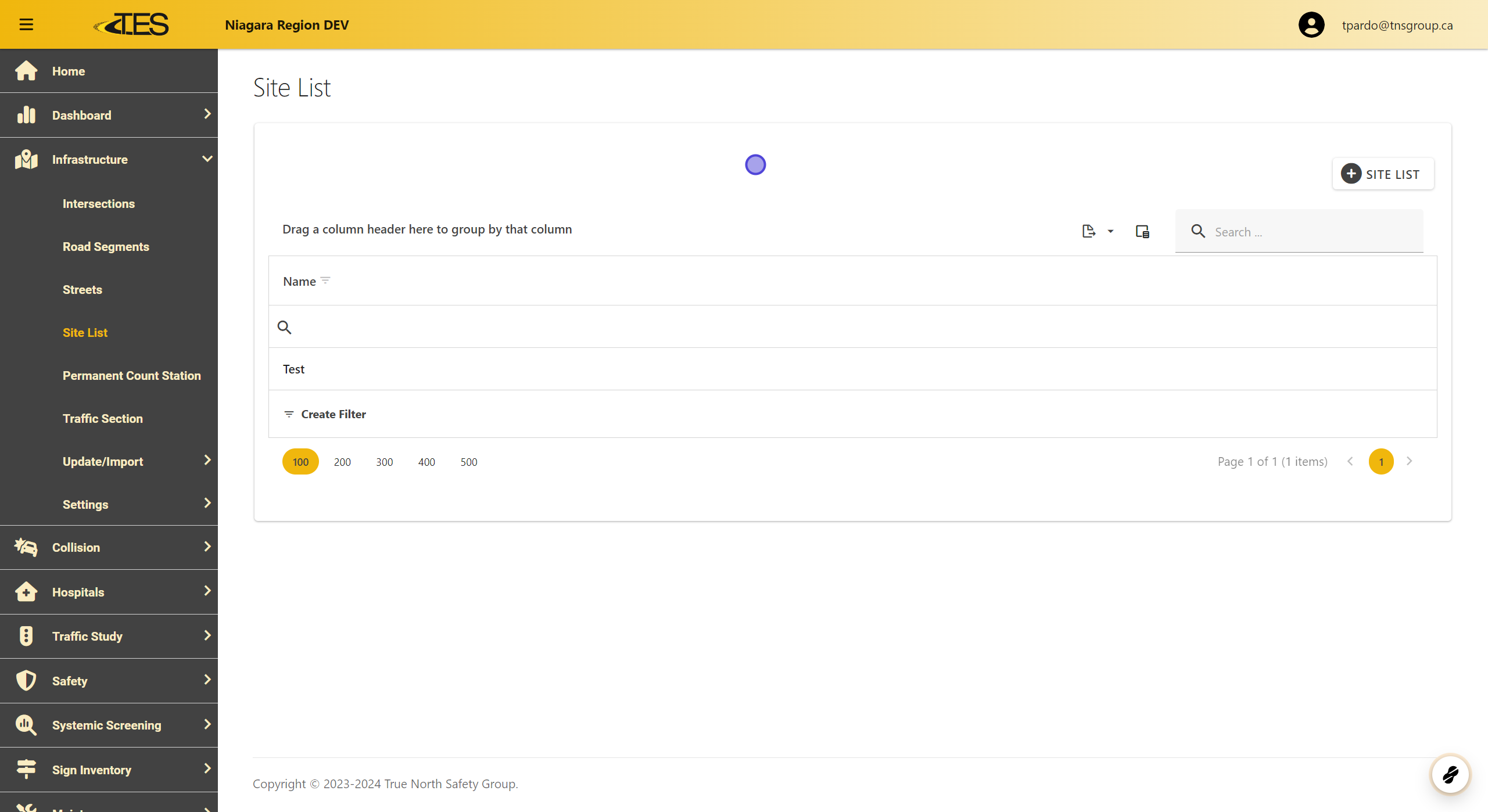
Navigate to the Site List section under the Infrastructure menu. This is where you can create and manage site lists.
2. Add a New Site List
Click on the Add Site List button located at the top-right corner of the screen.

3. Name Your Site List
In the new window, provide a name for your site list. This name will help you easily identify it later.

4. Add locations to Site List
Switch to the Locations tab to add specific locations to your site list. You can add locations by:
-
Selecting Intersections or Road Segments from the data grids.
-
Choosing locations directly from the map using the From Map option.

5. Save Your Site List
Once you've added all desired locations, click on the Save button to save your site list.

6. Edit Your Site List
If you need to make changes, click the Lock button to enable editing. You can add or remove locations or rename the list.

7. Save Your Changes
After editing, click the Save button again to update your site list.

8. Share Your Site List
To share your site list with colleagues, click on the Share button.

9. Select Users or Roles
In the sharing window, choose the specific users or roles you want to grant access to the site list.

10. Apply Your Site List in Filters
Your site list can be applied in the following modules:
-
Infrastructure : To filter intersections and road segments.
-
Collisions : To focus on incidents related to your selected locations.
-
Traffic Studies : To narrow down data for specific studies.
To use your site list for filtering:
-
Go to a data grid (e.g., Intersections or Road Segments).
-
Click the Filter button.

11. Apply Your Site List in Filters
Select your saved site list from the dropdown menu.

12. Apply Your Site List in Filters
Click Apply to filter the grid based on your site list.
