Details
This documentation shows how to view the information related to a single intersection
1. Access Intersections
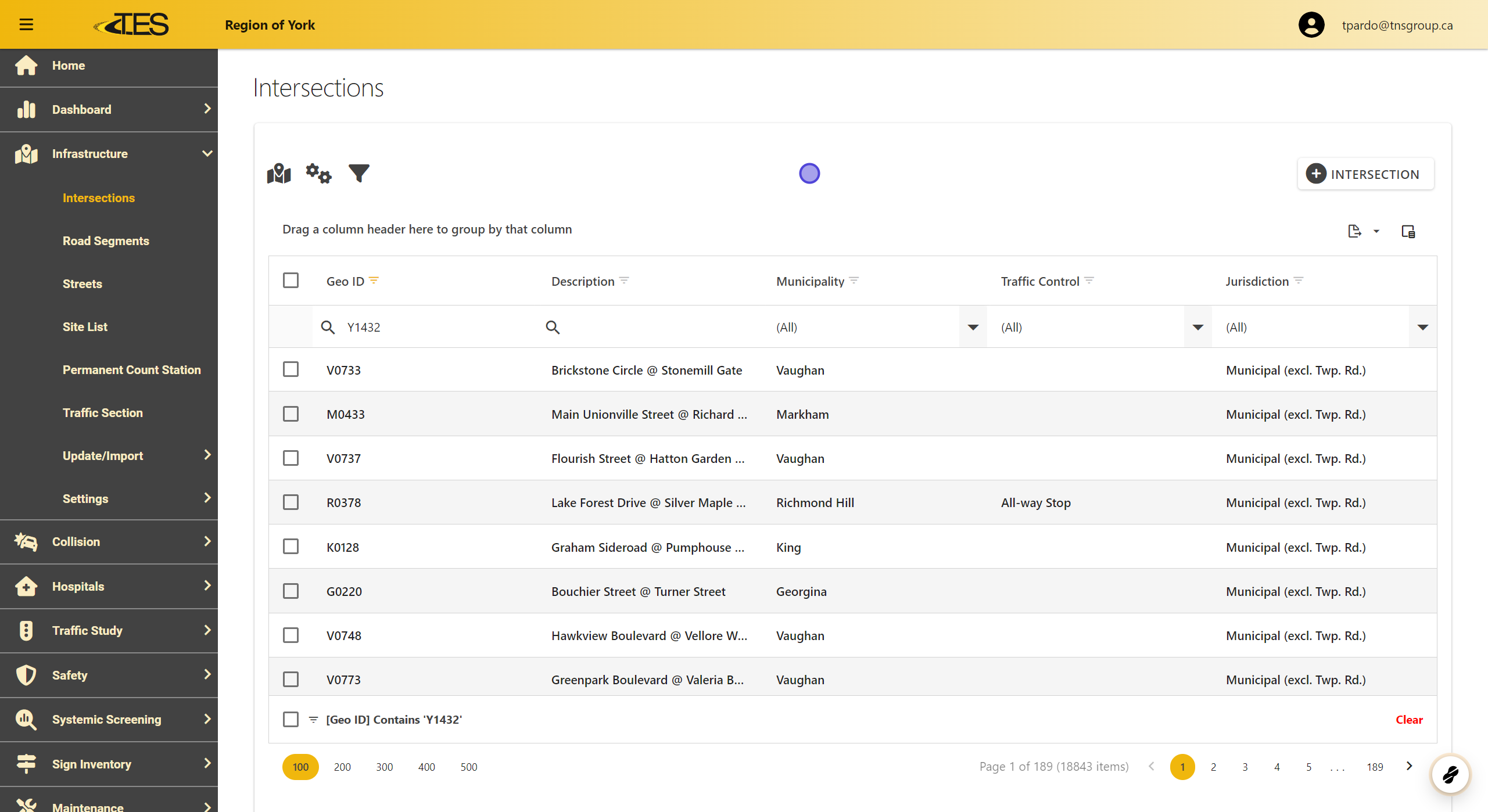
Navigate to the Intersections module from the main menu to see a list of all intersections.
2. Select Intersection
-
Locate the intersection you want to view using the Geo ID or Description .
-
Click on the desired intersection row to open its details.

3. Explore the Detail View
The detail view contains multiple tabs:
-
Summary : Displays a map, collision frequency graph, and AADT graph for the last 5 years.
-
General : Provides basic information such as description, municipality, and jurisdiction.
-
Location : Shows an enlarged map of the intersection.
-
Details : Lists detailed information about the streets intersecting.
-
Approach Details : Displays data for AADT prediction and signal warrant percentages.
-
Operation : Includes traffic control details like signal types or red-light cameras.
-
Collisions : Provides a grid view of reported collisions at the intersection.
-
Traffic Studies : Displays a list of traffic studies conducted.
-
AADT: Displays minor and major AADT as well as for each approach
-
Signs : Lists signs installed at the location.
-
Supports : Lists structural supports for signs or signals.

4. Analyze Graphs
The Summary tab includes:
-
Collision Frequency Graph : Displays collision severity trends over the last 5 years.
-
Graphs for Impact Types, Road Surface Conditions, and Lighting Conditions : Breakdown of collision factors.
-
AADT Graph : Shows calculated traffic volumes.

5. View Intersection on External Platforms
Use icons to view the location in Google Maps , Google Street View , Bing Maps , or Bing Street View .

6. Export Graphs
Click the Hamburger Menu (three dots) on any graph to export it as PNG , JPEG , PDF , or SVG .

7. Adjust Time Period for Collision Data
-
Click the Calendar Icon in the Summary tab to open the date filter.
-
Set the Start Date and End Date for the data you want to analyze.

8. Change the Start and End Date

9. General Tab
Edit or view basic intersection details

10. Location Tab
Location displays the same map in Summary but larger.

11. Details Tab
View intersecting street information.

12. Approach Details Tab
-
View Approaching road segments to the intersection
-
Approach Details is used for AADT prediction. TES Cloud has a built-in function to populate Approach Details using the GIS.
-
You will also see Signal Warrant Prediction Analysis Settings which includes Signal Warrant percentages . These percentages are used to predict volumes from each approach for future use in the Signal Warrants module , a module in that can be found in Studies.

13. Operations Tab
Check Traffic control specifics

14. Collisions Tab
Examine individual collision records

Choose Collisions to Display on the Diagram
From the list of collisions, check the boxes for the collisions you want included in the diagram.

Click Collision Diagram Button
Click the Collision Diagram button, located above the collision list.

Set Diagram's Date Range
Specify the Start Date and End Date for the diagram.
- These dates are for display purposes and do not affect the data shown.

Select Collision Diagram Type
Choose a diagram type that matches the intersection from the dropdown menu.

Generate Diagram
Click CREATE to generate the collision diagram.

View Diagram in Full Screen
Click the Full Screen button in the bottom-left corner to expand the diagram.

Understand Collision Diagram
-
The diagram uses symbols to indicate the type and location of collisions at the intersection.
-
A legend at the bottom explains the symbols:
-
First Number : Property damage-only collisions.
-
Second Number : Non-fatal injury collisions.
-
Third Number : Fatal collisions.
-

Export Diagram
Click the Export button to save the diagram in SVG , PNG , or JPEG format.

15. Traffic Studies Tab
Access conducted traffic studies

16. Signs and Supports Tab
View details of installed signs and structural supports.
