Overview
This documentation shows how to use Overview in Traveller Safety.
1. Access Traveller Safety
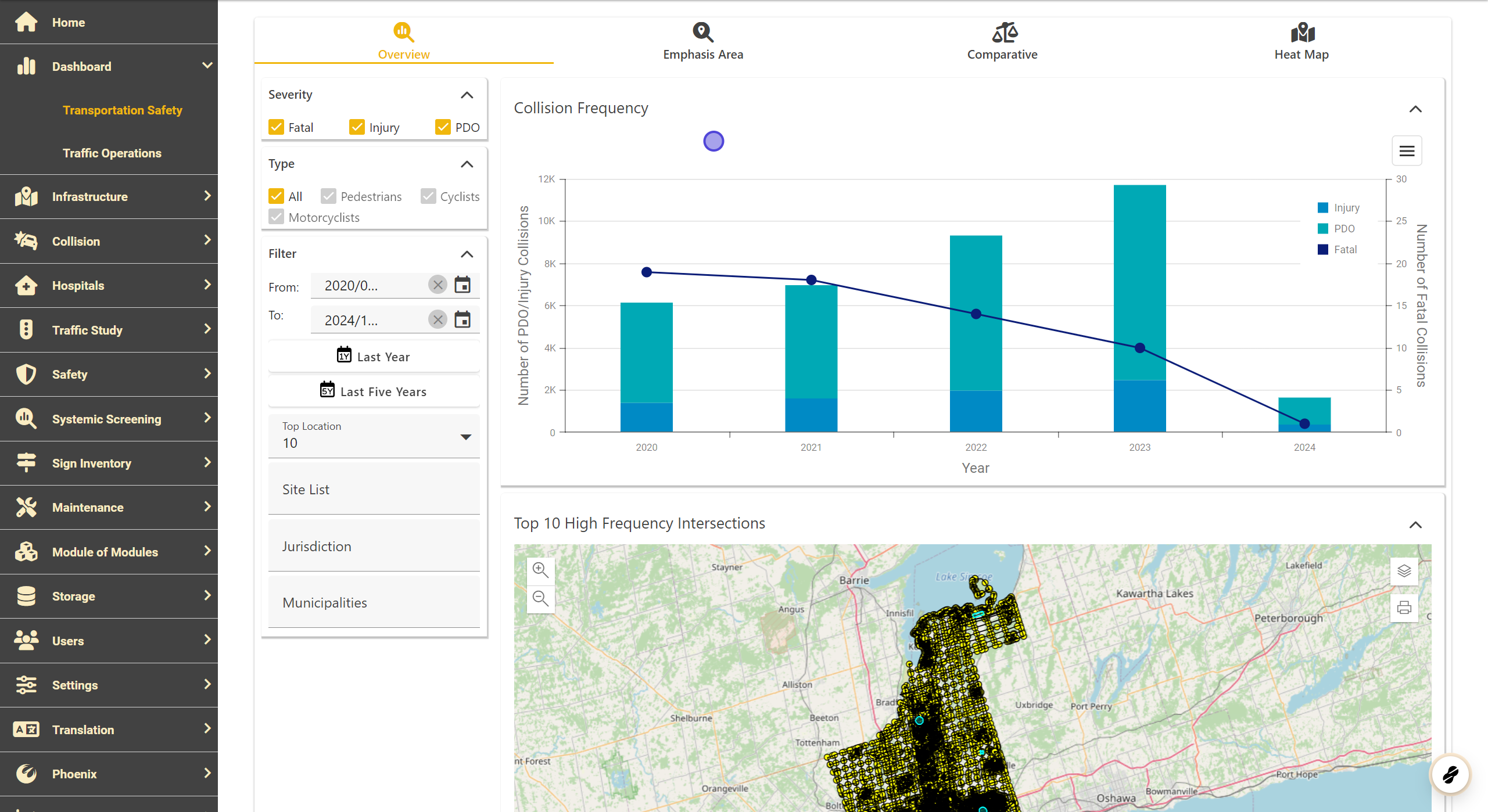
When you open Traveler Safety , the Overview tab is the default view.
Features of the Overview Tab:
-
A collision frequency graph showing trends over the years.
-
A map displaying the top locations based on collision frequency.
-
Two data grids summarizing:
-
Top intersections.
-
Road segments ranked by collision frequency.
-
Tip: Click on any location in the data grids to view detailed information about that location.
2. Printing the Map
To print the map, simply click on the Print button located on the map interface

3. Customizing Print Options
You can tailor your print settings for the map:
-
Choose Layout Options:
-
Print the map with additional layout details.
-
Print the map only.
-
-
Select File Formats:
- PDF, PNG, or other supported formats.
-
Page Setup:
- Customize the size and orientation of the output.
Once the options are set, click Export to download or print the file.

4. Adjust Collision Frequency Display
You can customize the data shown in the Overview tab by filtering collision frequency details:
-
Severity: Choose to display collisions labeled as:
-
Fatal
-
Injury
-
PDO (Property Damage Only)
-
-
Collision Type: Filter data for pedestrians, cyclists, motorcyclists, or all road users.

5. Filter Collision Frequencies
Narrow down the collision data displayed by applying filters:
-
Time Frame: Set a start and end date.
-
Jurisdiction: Focus on specific municipalities or site lists.
These filters apply to all data in the Overview tab.

6. Adjust Number of Top Locations Shown
Modify how many top locations are shown on the map and data grids:
- Options include 10, 20, 40, 50, 100, or 500 locations .
This customization affects only the map and data grid displays.
