Emphasis Area
This documentation shows how to use Emphasis Area in Traveller Safety.
1. Access Emphasis Area
-
Navigate to the Traveller Safety section.
-
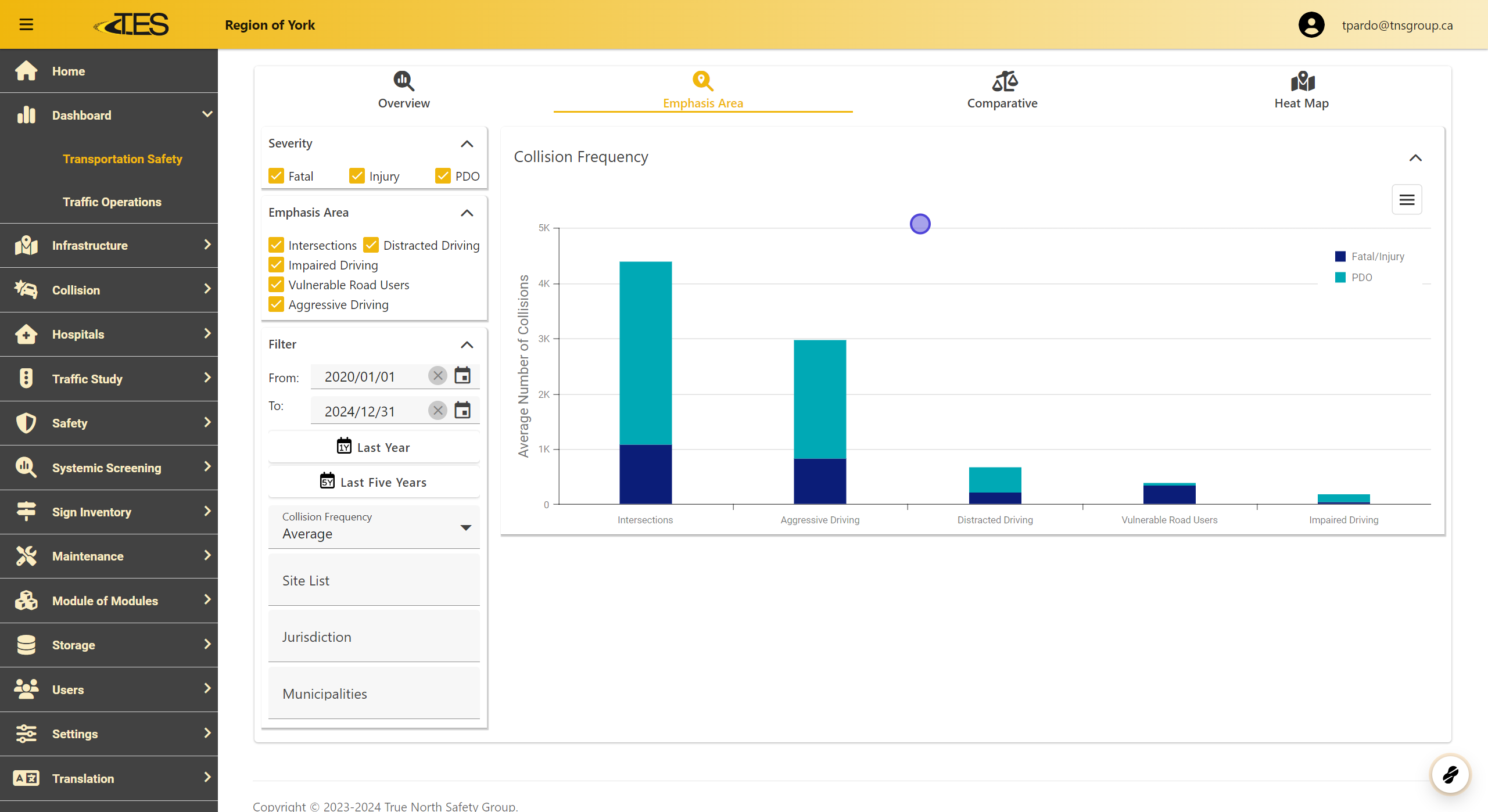
Click on the Emphasis Area tab to view the collision frequency data. This section provides visual insights into collision trends across selected emphasis areas.
2. Displaying Collision Frequencies
You can customize the collision data displayed based on:
-
Severity: Select from Fatal, Injury, or PDO (Property Damage Only).
-
Emphasis Area: Choose specific focus areas like Intersections, Distracted Driving, Impaired Driving, Vulnerable Road Users, or Aggressive Driving.
Check or uncheck options to display or hide specific data on the graph.

3. Adjusting Collision Frequency Type
-
Use the Collision Frequency dropdown to switch between Total or Average collision frequencies.
-
This feature allows you to analyze data based on the overall count or average values for better comparison.

4. Filter Collision Frequencies
Refine the collision data displayed by:
-
Date Range: Adjust the start and end dates or select predefined ranges like "Last Year" or "Last Five Years."
-
Site List: Select specific sites for targeted analysis.
-
Jurisdiction: Focus on a particular region.
-
Municipalities: Narrow down the data to a specific municipality.

5. Exporting the Graph
-
Click the Hamburger Menu on the top-right corner of the graph.
-
Export your graph as PNG , JPEG , PDF , or SVG for easy sharing or reporting.
