Display Traffic Study Data
This documentation shows how to display traffic study information in Traffic Operations.
1. Access Traffic Operations
To begin:
-
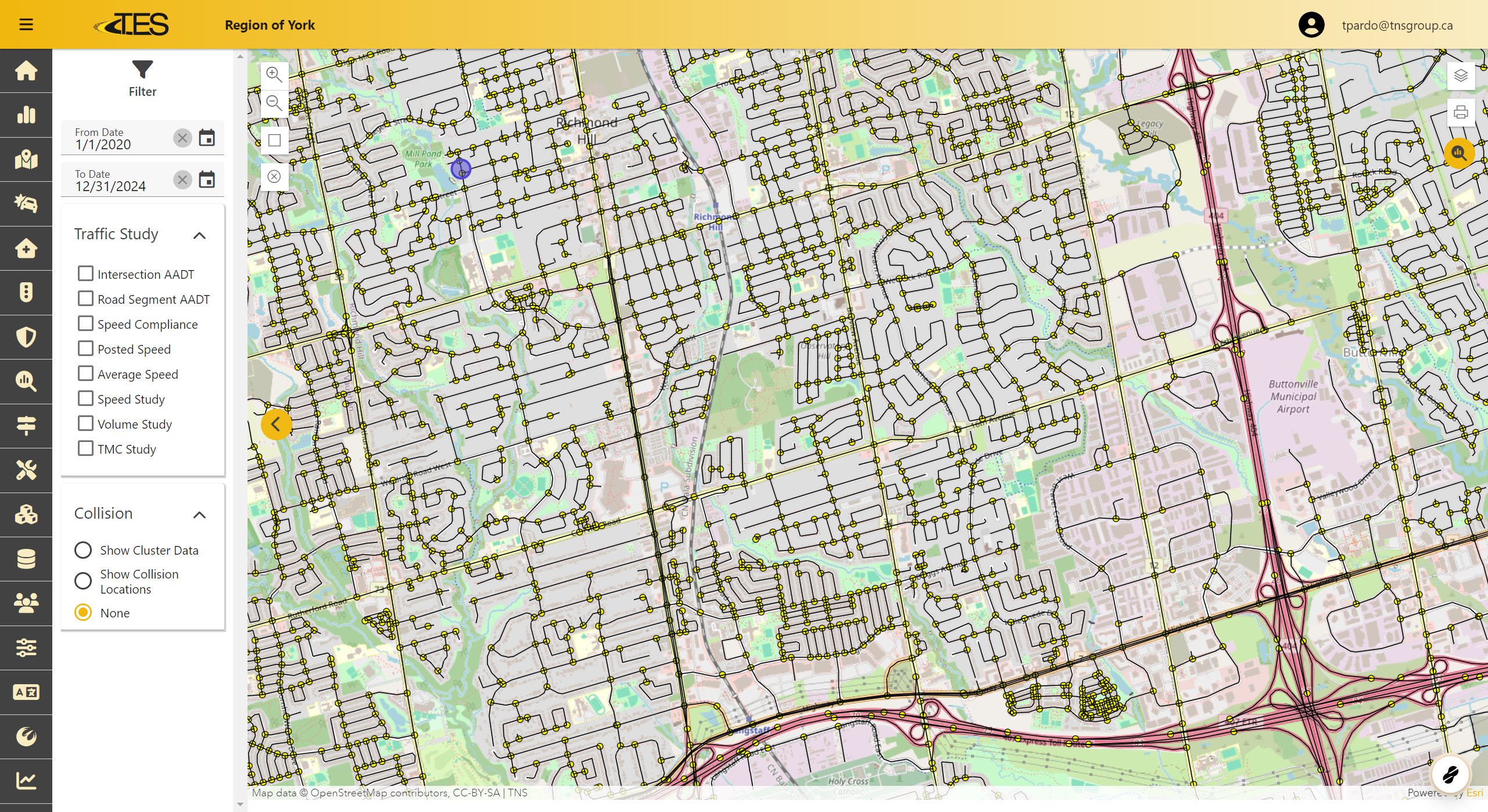
Navigate to the Traffic Operations module.
-
A map displaying the network will appear.
2. Select Traffic Study Information
To display specific traffic study data:
-
Use the Traffic Study menu on the left-hand side.
-
Choose the desired metric, such as:
-
Intersection AADT
-
Road Segment AADT
-
Speed Compliance
-
Posted Speed
-
Average Speed
-
Speed Study
-
Volume Study
-
TMC Study
-
-
The selected data will be visualized on the map.

3. View the Map Legend
To understand the map:
-
Check the Legend in the bottom-left corner.
-
The legend explains the colors and symbols representing the data (e.g., traffic volume ranges for AADT).

4. View Traffic Study Data for a Specific Location
To access detailed data:
-
Click on a location on the map with the desired traffic study data.
-
A pop-up will display relevant information, such as:
-
Geo ID (location identifier)
-
Total AADT
-
-
If the pop-up does not appear immediately, use the arrow button in the top-right corner of the pop-up to navigate through available details.
